
Boost Cleaner
Wycked FewProductivity
3.612.00 Reviews
- Version
- 3.0.0
- Installs
- 50.00K
- Age Rating
- Everyone
Screenshots
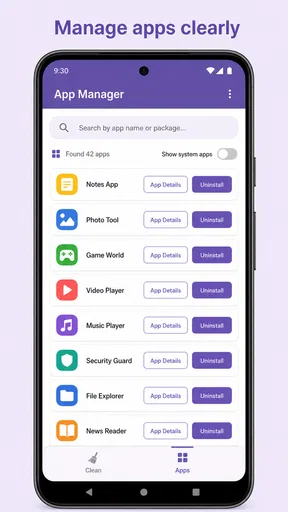
Our Review of Boost Cleaner
 Analysis by Appyee
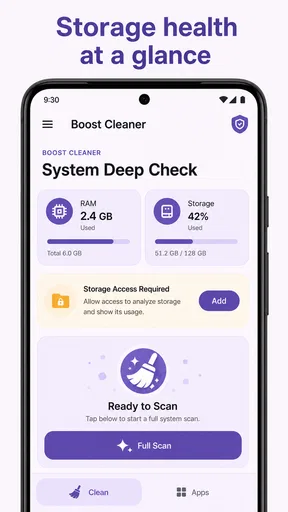
I approached Boost Cleaner as a practical storage-management tool rather than a magic speed booster. It is a free productivity app from Wycked Few that scans a device, presents cleanup suggestions, and gives you controls for managing installed apps. That sounds simple, but the useful part is not pressing a single cleaning button. The real value is deciding what deserves to stay, what can be removed, and whether a storage problem is actually the reason a phone feels slow.
After using it, my impression is fairly balanced. The app is easy to understand at a glance, and its purpose is clear enough for someone who does not want to dig through Android settings. At the same time, a cleaner needs your judgment. Suggestions are not automatically the same thing as safe deletions, and an app like this cannot fix every performance problem. I would recommend it to people who want a guided review of their phone, especially when storage is getting crowded, but I would not treat it as a replacement for the operating system’s own tools or for careful manual maintenance.
Where the first cleanup session can get stuck
The first point of friction is usually expectation. The name may lead you to expect an immediate performance transformation, while the practical job is more modest: inspect storage, consider cleanup suggestions, and manage apps with clearer controls. If your phone is full of forgotten downloads, unused applications, or accumulated clutter, that process can help. If the problem is a weak signal, an aging battery, a buggy application, or a system update waiting to finish, cleaning may have little effect.
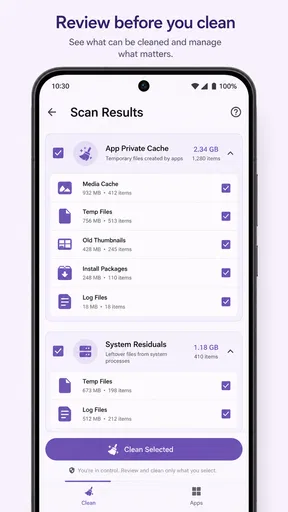
I found it helpful to treat the scan as an inventory rather than a command. When Boost Cleaner shows areas that may deserve attention, pause before approving anything. A file can look disposable while still being useful to you. Old images may be family memories, downloaded documents may be needed for work, and an app that has not been opened recently may still be important for travel or two-factor access. The strongest habit is to review suggestions in small groups instead of selecting everything at once.
This matters because a cleaner is most useful when it reduces decision fatigue without removing your decision-making. The clear controls are valuable for that reason. They can make a long storage review feel more manageable, but they do not know the personal meaning of every file or the future usefulness of every application. Use the scan to find candidates, not to outsource responsibility for your data.
Another common sticking point is confusing storage with memory. Freeing space can make a crowded phone easier to maintain, but it does not guarantee that every app will open faster or that the battery will last longer. Android handles temporary memory differently from permanent storage, and repeatedly forcing apps to close can sometimes make normal use less convenient. I would focus Boost Cleaner on reclaiming genuinely unnecessary space rather than chasing a constantly empty background.
What I check before trusting a suggestion
Before I approve a cleanup action, I ask three quick questions. Do I recognize the item? Would I miss it tomorrow? Can I recover it easily if I change my mind? That simple test is especially useful for downloads and media. If the answer to the second question is uncertain, I leave the item alone until I have opened it in the relevant app or copied it somewhere safe.
I also separate app management from file cleanup. Removing an app is a bigger decision than deleting a disposable download because an application may contain local settings or offline content. If I have not used an app for months, I first consider whether it stores anything I need. I also check whether I can sign back in and whether the service is still available. Boost Cleaner can help me locate candidates, but the final decision belongs in the context of my own accounts and routines.
A useful, less obvious workflow is to scan before making changes, write down the categories that appear largest, and then inspect those categories outside the cleaner when necessary. This prevents a common mistake: spending time deleting tiny items while ignoring one large folder or application that actually explains the storage warning. The scan is most valuable as a map of priorities.
Setup checks that prevent avoidable trouble
Boost Cleaner is listed for Android devices running version 8.0 or later, so compatibility is the first basic check. The app is rated for Everyone, which makes it approachable for a broad audience, but an age rating does not remove the need for care with personal files. I would install it only when I am ready to review the results, rather than treating it as something that should make decisions unattended.
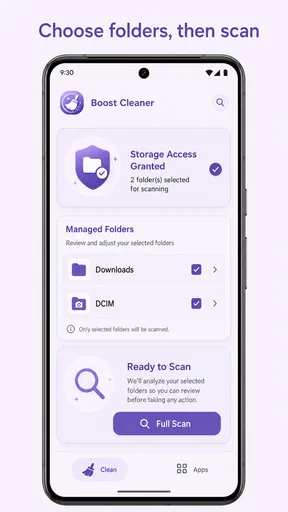
On the first run, give yourself a quiet minute. Close anything that is actively downloading or editing files, finish an important document, and avoid beginning a cleanup while you are rushing out the door. This is not because the app is complicated; it is because storage maintenance is easier to verify when the phone is not changing underneath you. A scan made during a large download can produce a less useful snapshot of what is available.
I would also make sure important photos, documents, and recordings already exist somewhere you trust before removing anything. That could be a computer, a cloud service you already use, or another safe copy. The important point is not to create a new backup routine solely for this app, but to avoid using a cleaner as the first place where you discover that a file mattered.
One practical setup check is to know the difference between uninstalling an app and clearing its associated data. Those actions are not interchangeable. Uninstalling removes the application, while clearing data can reset an app’s local state; either action may affect offline content or saved preferences. When Boost Cleaner presents app-management choices, I would read the wording carefully and use the operating system’s confirmation screen as a second chance to stop.
The app is free, which lowers the barrier to trying it, and its listing shows over ten thousand installs. Its average rating is 3.6, based on 16 ratings, so I would approach it as a useful but still relatively lightly established utility rather than as a universally proven maintenance standard. That does not make it a poor choice, but it does reinforce my preference for gradual cleanup and verification.
A safer order for the first pass
My preferred order is conservative. I start with items I created or downloaded myself and no longer need. Next, I review applications that I clearly recognize and have deliberately stopped using. Only after that would I consider less obvious categories, and I would inspect them individually. This order gives the app a chance to save space without making the first session feel risky.
I would not run a cleanup immediately before travel, an exam, a work presentation, or any situation where losing offline access would be especially costly. An unused-looking application may contain maps, tickets, notes, or authentication tools. A few minutes of preparation can be worth more than the storage recovered. This is one of the most important trade-offs with any cleaner: convenience is helpful, but convenience should not outrank continuity.
For families, I would make the review collaborative. If the phone belongs to a child, older relative, or anyone who relies on downloaded content, ask before removing unfamiliar items. The Everyone rating makes the app broadly accessible, but it does not mean every cleanup choice is obvious to every user.
Recovering when a cleanup workflow does not go as planned
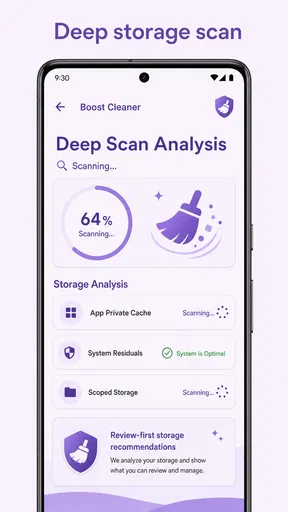
If a scan seems stuck or does not appear to change after a cleanup, I would begin with simple checks rather than repeating the same action. Confirm that the phone itself is responding normally, close and reopen the app, and check whether the device has enough free space to continue operating comfortably. A nearly full phone can behave unpredictably, and the cleaner may be showing a snapshot that needs time to refresh.
If the app closes unexpectedly, I would restart the phone and try a smaller review. Instead of selecting a large group, handle one category or a few recognizable items, then check the storage screen again. This creates a clear point of comparison and makes it easier to identify whether the issue is tied to a particular item or to the device more generally.
When an application still appears after I remove it, I would not assume the cleanup failed. The entry may be a refreshed list issue, a separate copy, or an application that was not actually uninstalled. I would verify through Android’s own app settings, then reopen Boost Cleaner so it can display the current state. The operating system is the better authority for confirming whether an app remains installed.
The same principle applies to free space. Storage figures may not update instantly, and different screens can classify cached or temporary material differently. I would wait briefly, revisit the device’s storage view, and compare the overall available space rather than expecting every category to change in exactly the same way. If the phone remains full, look for large videos, offline media, messaging attachments, and major applications before spending time on small cleanup suggestions.
A particularly useful recovery habit is to stop after every meaningful change. If the phone behaves differently afterward, you know which action preceded it. If you approve dozens of suggestions in one pass, troubleshooting becomes guesswork. This slower approach may feel less satisfying, but it is much better for protecting personal data and identifying the real source of a problem.
When the cleaner is only part of the workflow
Boost Cleaner works best as a front door to a broader maintenance routine. I might use it to identify candidates, then open a file manager or the relevant media application to confirm what they are. For applications, I would use the system settings to check size, permissions, account status, and uninstall behavior. This combination is more deliberate than relying on one interface for every decision.
There is also a useful monthly workflow for people who regularly run out of space. Start with a scan, note the largest categories, remove only items you recognize, and then review the results in Android settings. If storage is still tight, inspect the largest individual applications and media folders. This prevents the common cycle of cleaning a little debris, seeing no meaningful difference, and assuming the tool is ineffective when the real problem is a large, overlooked category.
For a family photo collector, for example, I would use the app to identify possible clutter but keep the actual photo review in the gallery or backup service. For someone who installs many trial applications, the app-management side may be more useful than file cleanup. For a work phone, I would be stricter: review downloads and unused apps only after checking whether they support offline tasks or company access.
When the app is not the cause of a slow or unreliable phone
It is easy to blame storage whenever a phone feels sluggish, but the cause may be elsewhere. If only one app is slow, update or troubleshoot that app directly. If the whole phone is hot, draining quickly, or losing signal, investigate battery health, network conditions, recent updates, and background activity. A cleaner cannot repair damaged hardware or improve a weak connection.
If there is plenty of free space and the device still struggles, Boost Cleaner is probably not the right solution. The operating system’s built-in storage tools may provide more context, while the support resources for the phone manufacturer may be better for system-level faults. I would also avoid aggressive “optimization” habits such as repeatedly clearing everything just to make a number look smaller. The goal is reliable use, not an empty cache at all times.
People who need detailed file browsing, duplicate detection, encrypted storage handling, or advanced backup controls may prefer a dedicated file manager or backup application. Those tools can be more appropriate when the main task is organizing a large personal archive rather than making a quick storage review. Boost Cleaner is better suited to guided discovery and straightforward app management than to being a complete digital filing system.
Privacy-conscious users should also keep their expectations realistic. A cleaner may make storage decisions easier, but that does not mean it should be granted unquestioned authority over every part of a phone. Review each system prompt, understand what action you are confirming, and stop if the wording is unclear. If you are uncomfortable with that process, Android’s native storage screen may be the more reassuring option because it keeps maintenance closer to the system controls you already know.
Who will get the most from it
I see the best fit in three situations. First, it suits someone who receives repeated low-storage warnings and wants a guided starting point. Second, it helps people who have accumulated many applications and need a clearer way to decide what they still use. Third, it can be useful for less technical users who find the phone’s storage menus confusing but are willing to review suggestions carefully.
I would skip it if you already maintain storage confidently through Android settings, use a capable file manager, or expect a one-tap performance cure. I would also be cautious on a shared or work-managed device, where removing an app or local file can affect another person’s routine or an organization’s setup. In those cases, manual confirmation is more important than convenience.
One trade-off I appreciate is that the app’s simplicity can be both its strength and its limit. Clear controls reduce the intimidation of a storage review, but they may not satisfy someone who wants deep technical explanations for every category. If your priority is making a sensible first pass, that simplicity is welcome. If your priority is forensic-level control, choose a more specialized tool.
My practical verdict after using Boost Cleaner
Boost Cleaner is most convincing as a cautious storage-review assistant, not as a cure-all performance tool. I like the basic direction: scan the phone, inspect suggestions, and manage applications from a focused productivity utility. The free price makes experimentation easy, and the current version is 3.0.0. For a person who wants help finding forgotten clutter, that is a reasonable package.
My recommendation comes with a clear method. Back up anything important, begin with recognizable files, handle app removal separately, confirm changes through Android settings, and stop after each significant action. Those steps turn the app from a risky shortcut into a controlled review process. They also make it easier to tell whether the recovered space is enough or whether a larger application, media collection, or system issue needs attention.
In an everyday scenario, imagine a phone that warns you about storage just before a weekend trip. I would use Boost Cleaner to locate obvious downloads and unused apps, leave travel tools and offline maps alone, verify the result in system storage, and only then decide whether more space is needed. That is where the app earns its place: it can shorten the search without pretending to understand every personal choice.
Wycked Few has made a tool that is approachable enough for ordinary maintenance, but the modest rating of 3.6 suggests I would keep expectations measured. I would install it when I wanted a guided second opinion, not leave it in charge of my phone. If you are comfortable reviewing suggestions and want a free way to organize a storage cleanup, it is worth trying. If you need advanced file management, guaranteed performance gains, or a complete backup system, another category of tool will serve you better.
Privacy and Permissions
See what permissions an app requests and how it handles your data.
- Photos/Media/Files
- read the contents of your USB storage, modify or delete the contents of your USB storage
- Storage
- read the contents of your USB storage, modify or delete the contents of your USB storage
- Wi-Fi connection information
- view Wi-Fi connections
- Other
- view network connections, full network access, run at startup, control vibration, prevent device from sleeping, Google Play license check
Verdict
Strengths of Boost Cleaner
- Quickly identifies cached files and unnecessary data.
- Simple interface makes cleaning tasks easy to understand.
- Includes tools for managing large files and unused apps.
- Can help free storage without requiring technical knowledge.
- Offers battery and memory tools in one convenient dashboard.
Limitations of Boost Cleaner
- Some features may be restricted to the premium version.
- Cleaning recommendations can require manual review before removal.
- Frequent notifications may feel intrusive to some users.
- Results can vary depending on device and Android version.
- Cleaner apps may provide limited benefits on newer phones.
Similar Picks in This Category
View All
Google Calendar
Google LLC4.6

Google Drive
Google LLC4.3

Google Assistant
Google LLC3.9

Microsoft OneDrive
Microsoft Corporation4.6

Samsung Calendar
Samsung Electronics Co., Ltd.4.1

Microsoft OneNote: Save Notes
Microsoft Corporation4.6
Frequently Asked Questions
What is Boost Cleaner and what does it do?
Boost Cleaner is a mobile utility designed to help manage storage and improve device organization. It typically scans for unnecessary files, cached data, duplicate photos, large files, and unused applications. Depending on the version and operating system, it may also include battery, memory, or privacy-related tools. Results can vary, so review suggested items carefully before deleting anything.
Is Boost Cleaner safe to use on Android or iPhone?
Boost Cleaner can be useful when downloaded from an official app store and granted only the permissions it genuinely needs. However, users should still read the privacy policy, check the developer information, and review permission requests before continuing. Cleaning applications cannot magically repair hardware or guarantee faster performance, and some advertised optimization features may have limited practical impact.
Can Boost Cleaner delete important photos, files, or personal data?
Boost Cleaner may identify files it considers unnecessary, including duplicate images, screenshots, temporary data, and large media files. Automated suggestions are not always perfect, so you should inspect the list manually before confirming a cleanup. Back up important photos and documents first, particularly when using duplicate-file removal or any feature that permanently deletes content.
Is Boost Cleaner free, or does it require a subscription?
Boost Cleaner may offer a free download with basic scanning or cleaning tools, while advanced features can be restricted behind advertisements, in-app purchases, or a recurring subscription. Pricing, trial periods, and available functions may differ between Android and iOS and can change over time. Check the store listing and subscription screen carefully before accepting any payment.
Does Boost Cleaner really make a phone faster and improve battery life?
Boost Cleaner can help free storage space and make it easier to remove clutter, which may improve usability when a device is nearly full. Nevertheless, its effect on speed or battery life is usually limited and depends on the phone’s condition. Closing apps repeatedly or deleting cache data does not always improve performance, so treat optimization claims realistically.
